

Receiving an order is the moment your costs change: the supplier put their price up, or freight and duty landed heavier than expected. If the cost moves and your retail price doesn’t, your margin quietly erodes. After a receipt, Stockful works out which products no longer hold the margin you’re aiming for and suggests what to charge instead. Nothing reaches your store until you approve it.
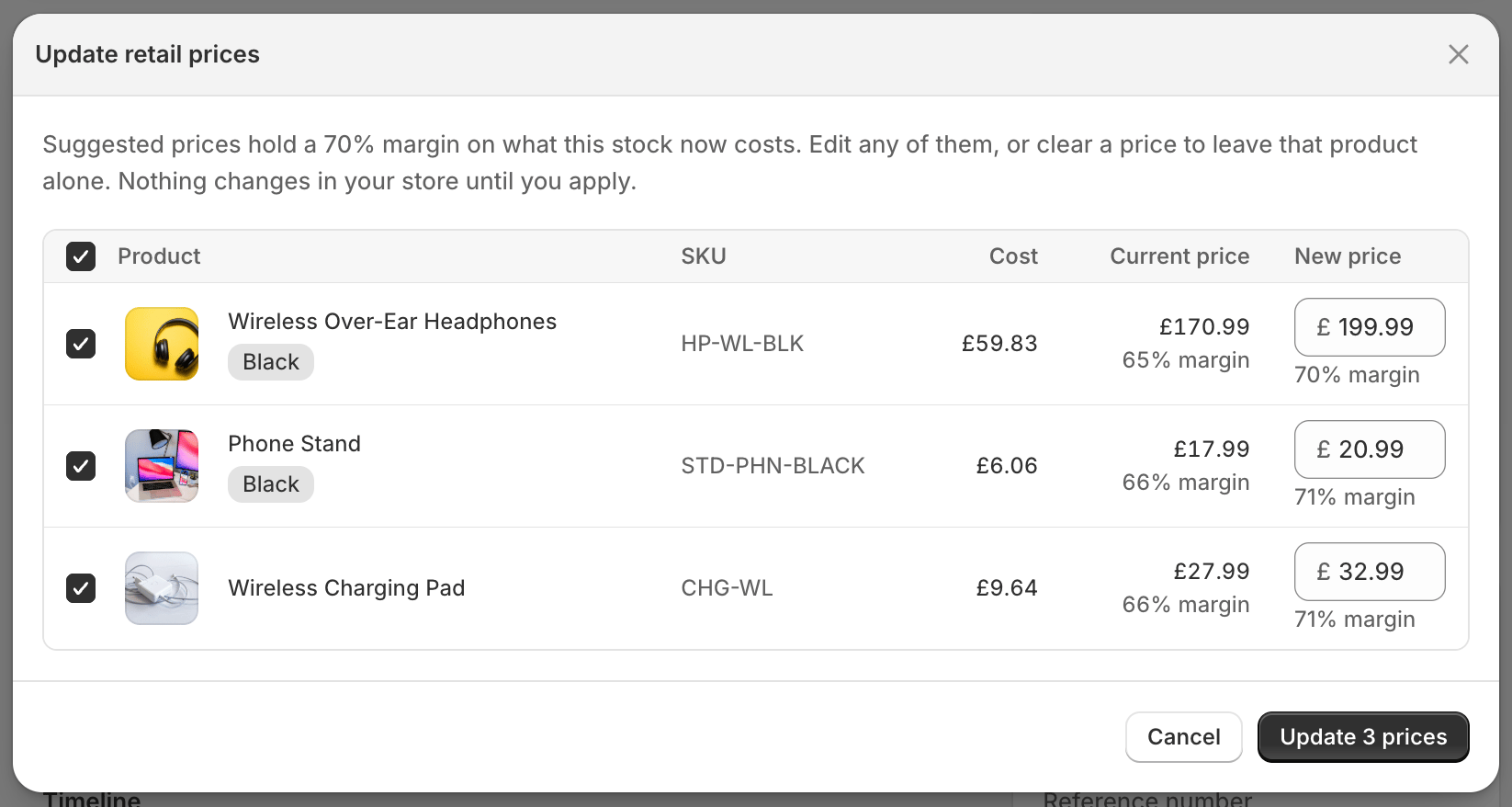
Reviewing suggested retail prices, with cost, current price and the margin each would give

Setting a target margin

Suggestions only appear once Stockful knows what margin you want. Set a target margin on a supplier under Suppliers, in the Purchasing section. That’s the one that applies to anything you buy from them. For a figure that applies everywhere else, set a default target margin under Settings → Purchasing, in Retail repricing. A supplier with a target of its own always wins over it. Leave both empty and repricing stays off entirely: no suggestions, no prompt.
Stockful works in margin, not markup. A 60% margin means 60% of the selling price is profit, so a product costing £40 sells at £100. It’s the same figure shown next to the cost on each purchase order line, so what you set is what you’ve been reading.

Rounding

Raw margin maths gives prices like £13.4732, which nobody puts on a shelf edge. Under Settings → Purchasing you can round every suggestion to:
  • No rounding - the exact figure
  • End in .99
  • Whole number
  • Nearest 0.50
Rounding only ever goes up, so it can’t quietly undercut the margin you asked for. A product needing £13.47 to hold 65% is suggested at £13.99, not £12.99.

Reviewing the suggestions

Once a delivery is received, a Retail prices banner appears on the purchase order saying how many products no longer hold your target. Choose Review prices to see them.

The retail prices banner on a received purchase order
Each row shows:
  • What the stock now costs you, after freight, duty and any other charges on the order
  • What it currently sells for, and the margin that leaves
  • The suggested new price, and the margin that would give
You’re not held to the suggestion. Edit any price and the margin beside it updates as you type. Untick anything you’d rather leave alone, or clear a price to skip that product. A price below cost is flagged rather than blocked, since selling at a loss is sometimes a deliberate choice.
These are the prices customers pay. Approved prices go to Shopify immediately and your store starts charging them, so there’s a confirmation step before anything is written. Putting the old prices back would mean setting them again yourself.

What Stockful leaves alone

The list is only ever products where there’s a decision to make:
  • Anything already at your target price is left off it.
  • A product with no cost recorded is left off, because there’s nothing to work a price from.
  • Only lines you actually received are considered. An order still on its way hasn’t changed your costs yet.
If you’ve already repriced half a delivery, reopening the order shows only what’s still outstanding.

Afterwards

Every change is recorded on the order’s timeline. Open the retail prices entry and it lists each product with its old and new price, so you can see later exactly what moved and when. The change also lands in your price history, which is what feeds the pricing reports - including price change impact, which shows what happened to volume and revenue after a price moved. Your costs aren’t touched by any of this. Repricing changes what you sell for, never what you paid.