

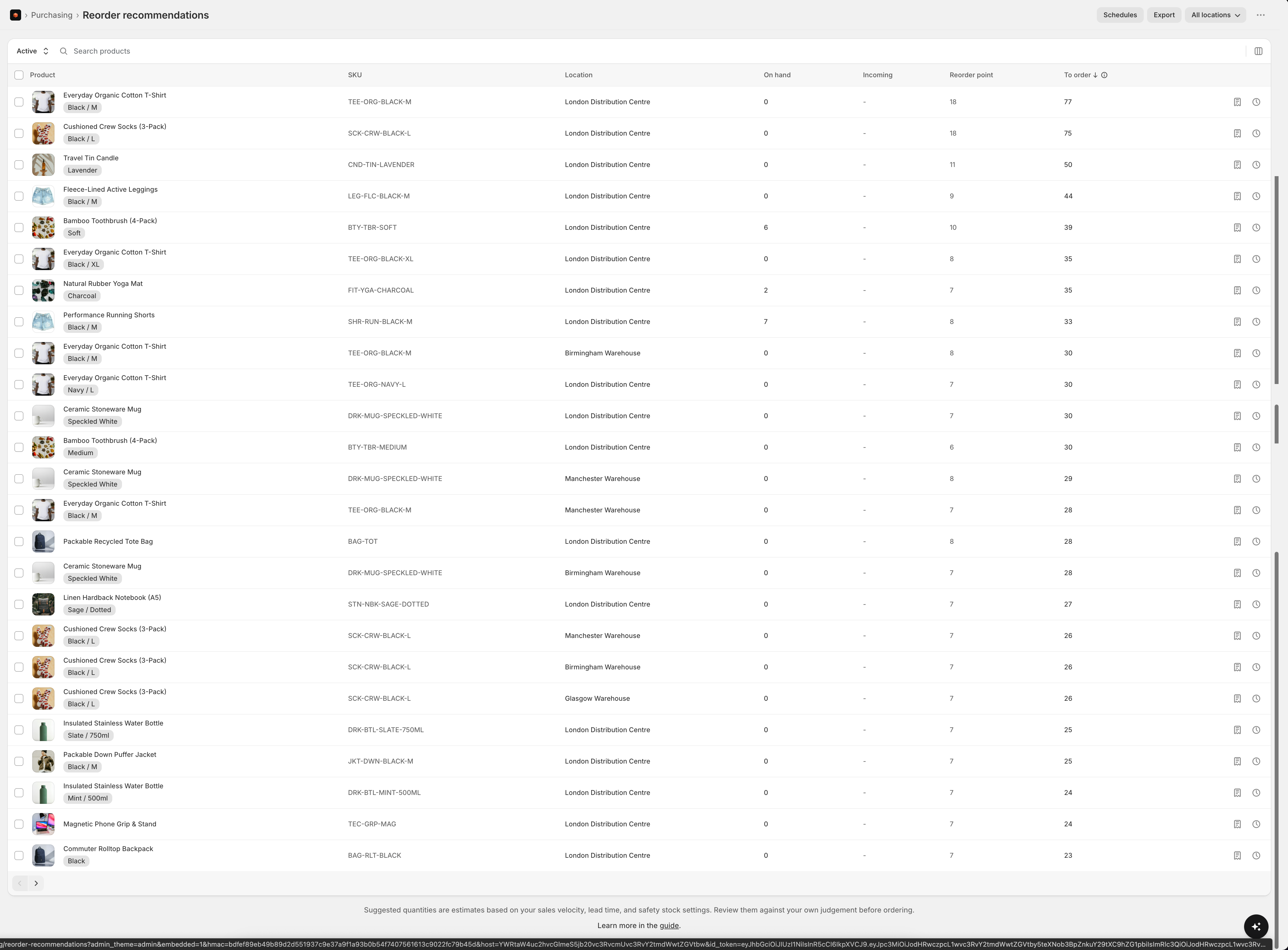
- Reorder point is the level at which it’s time to reorder - enough to cover demand over the lead time plus safety stock
- Incoming is stock already on its way to the location - units arriving on Shopify inventory transfers or shipments that are marked in transit
- Quantity to order is the suggested order size to bring you back to target, after subtracting incoming stock so you don’t double-order
If a supplier has closed periods set, recommendations for their products fire earlier and suggest more, so stock lands before the shutdown and carries you through it.
Consolidated view (buying across locations)
If you fulfil from several locations but purchase centrally - buying in bulk for the whole business rather than per warehouse - set your Forecasting sales grouping to Combined across locations. A Consolidated option then appears in the location selector at the top of the report, and combined-mode shops open on it by default. You can still switch to All locations or a single location from the same selector. The consolidated view shows one row per product across all your locations, with a single quantity to order for the entire business:- On-hand and incoming are totalled across every tracked location
- Quantity to order is calculated from your combined demand across all locations, then netted against your total stock and incoming - so it’s the number to buy once, not per location
- Incoming is arrival-date aware: stock already on the way only reduces the suggested order if it lands before you’d run out. A container arriving too late to prevent a stockout won’t stop an item being recommended - useful when you have long lead times and order in small, frequent batches
Switching sales grouping between Per location and Combined across locations recalculates your recommendations within a few minutes.
Combined with linked stores
If you run more than one Shopify store for the same stock, link them and map the products they share. A Combined with option, named for the linked store, then appears in the location selector. It shows one row per mapped product, with on-hand, incoming and the quantity to order pooled across both stores in this store’s units, and the split beneath each number. Orders you raise from it are placed in this store.Adding to a purchase order
Turn recommendations straight into purchase orders - no exporting or retyping. Use a row’s Add to purchase order action for one item, or tick several rows and choose Add to purchase order from the selection bar. Select all matching hands over everything your current filters match, not only the rows on the page. Then pick where the products go.A new purchase order
Because each product is bought from a supplier, Stockful groups your selection into one draft order per supplier (and destination), ready to review before anything is placed:- Grouped by supplier - each group shows its products, unit count and total, so you can see “Acme → Main warehouse: 8 products, £1,840” at a glance
- Costs and pack sizes applied - unit costs come from each supplier’s price list, and quantities round up to the supplier’s pack size
- Minimum order value - a group below its supplier’s minimum is flagged so you can top it up
- Needs a supplier - products without a primary supplier are called out; assign one inline so they can go on an order
An order you already have open
Choose one of your draft orders instead and the products go straight onto it, keeping the quantities from the recommendations. A product already on that order has its quantity increased rather than appearing on it twice, so it stays one line at the receiving bench. Supplier grouping doesn’t apply here: you’ve named the order, so everything you picked goes on it whoever supplies it. A product with no primary supplier is fine too, since the order’s own supplier prices the line.The picker lists draft orders. To add products to one you’ve already marked as ordered, open it and use Edit on the items section.
One handoff carries up to 250 products, which is a single order’s worth of lines. If Select all matching covers more than that, Stockful says so and takes the first 250 - narrow the filters and run the rest.
Snoozing recommendations
If an item is on your radar but you don’t want it flagged right now - a PO is already placed, you’re discontinuing it, and so on - snooze it for a set number of days with an optional reason and note.- Snoozed items move to the Snoozed tab and reappear automatically when the snooze expires
- Un-snooze at any time to bring an item back
- Snooze a single item, or select several and snooze them in bulk
- In the consolidated view, snoozing a product applies across all of its locations