

Available on all plans. MCP usage runs in your own AI tool and doesn’t count against your in-app assistant message allowance.
What you can do
Once connected, ask your AI tool questions about your store:- “What’s low on stock at my London warehouse?”
- “What’s my stock worth right now, by location?”
- “Which products drive most of my revenue?” (ABC analysis)
- “What are stockouts costing me this month?”
- “Any unusual demand this week?”
Purchasing
- Create and edit suppliers
- Create and edit draft purchase orders
- Raise draft purchase orders straight from your reorder recommendations, grouped by supplier
- Mark a draft purchase order as ordered
- Receive stock against an ordered purchase order
Supplier price lists
- See what a supplier charges for each product, along with their SKU, pack size and minimum order quantity
- Add products to a supplier’s price list, or update and remove entries
- Set the primary supplier for a product
Stock adjustments
- Create a draft adjustment for write-offs, damages or a recount
- Perform an adjustment, which applies it to your Shopify inventory
Alerts and reports
- Create a notification rule, or turn an existing one on and off
- Schedule a report, or turn an existing schedule on and off
- Snooze and un-snooze reorder recommendations
- Dismiss and restore transfer suggestions
- Adjust forecast defaults or a single product’s thresholds
Permissions
Each connection is either read only or read and write. You choose when you create it, and it can’t be changed afterwards: to change what a connection can do, revoke it and create a new one.- Read only. The connection can see your data and answer questions about it. It can’t change anything. This is the default.
- Read and write. The connection can also make the changes listed above.
Create a connection
- In Stockful, go to Settings → MCP server.
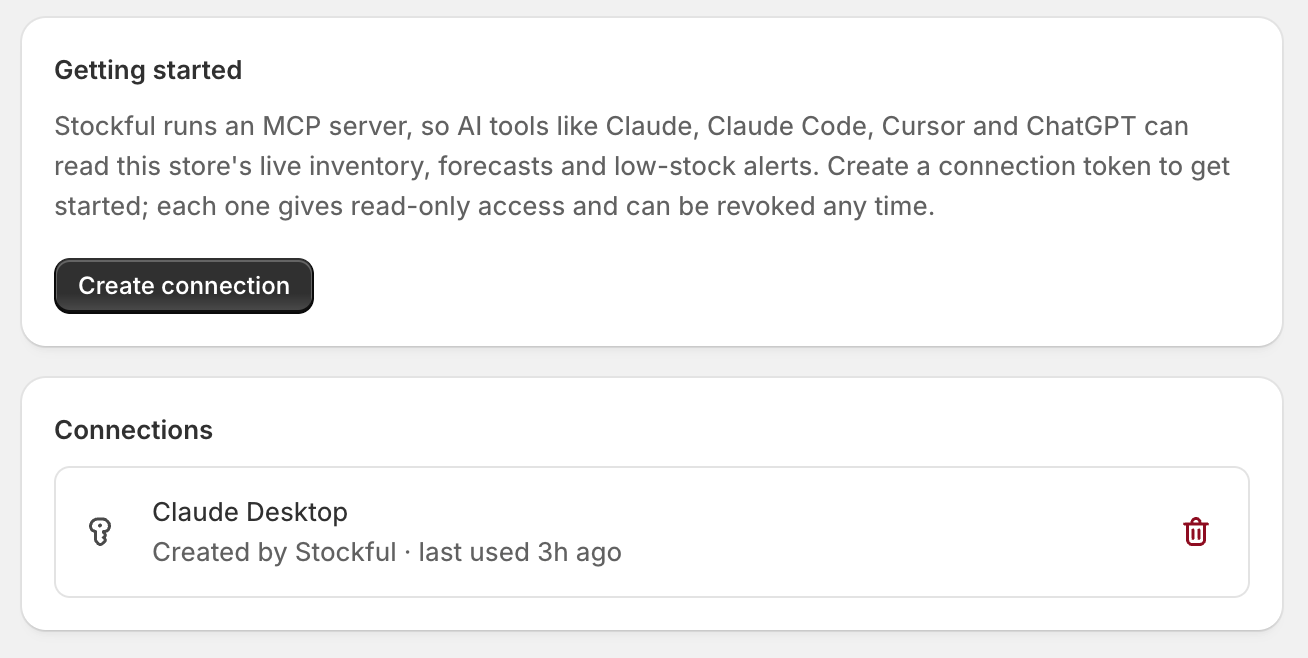
- Click Create connection and give it a name you’ll recognise (for example “Claude on my laptop”).
- Tick Allow write access if you want this connection to be able to make changes. Leave it unticked for a read-only connection.
- Click Create, then copy the Connection URL shown. It contains a secret token, so it’s shown only once.
Add it to your AI tool
The connection URL already contains your token, so no separate API key or header is needed. Pick your tool below and use the URL from the step above in place ofhttps://mcp.stockful.app/YOUR_TOKEN.
Claude (desktop & web)
Go to Settings → Connectors → Add custom connector, paste the Connection URL, and click Add. No sign-in is required.Claude Code
In your terminal, then restart Claude Code:Cursor
Open Settings → Tools & MCP → New MCP server, then add:VS Code
Open the Command Palette and run MCP: Open User Configuration, then add:Gemini CLI
Add this to your~/.gemini/settings.json file:
ChatGPT
Go to Settings → Connectors, add a custom connector, and paste the Connection URL. This requires a ChatGPT plan with connectors / developer mode enabled.Managing connections
The Settings → MCP server page lists every active connection, whether it’s read only or read and write, who created it, and when it was last used. Multiple staff can each create their own. To revoke one, click the delete icon next to it and confirm. Access is cut off immediately, even for a tool that’s mid-conversation. Revoking is permanent; create a new connection if you need access again.Security and data
- Shown once. The full Connection URL (with its token) is shown only at creation. Only a fingerprint is stored, so we can’t show it again, only revoke it.
- Scoped to your store. A connection only ever sees the store it was created for.
- Write is opt in. A connection can only make changes if you granted write access when you created it. Read-only connections are never offered the tools that change anything.
- Changes are confirmed. Your AI tool surfaces any change for your confirmation before it’s applied, and records it against the connection’s name.
- Nothing is sent to your suppliers. Purchase orders are created as drafts. Sending an order stays a manual step in Stockful.
- Revoke any time. Removing a connection cuts off access on the next request.
- Your AI tool, your terms. Conversations happen in your AI tool (Claude, Cursor, ChatGPT, and so on) under that provider’s terms; Stockful only answers the data requests your tool makes.