

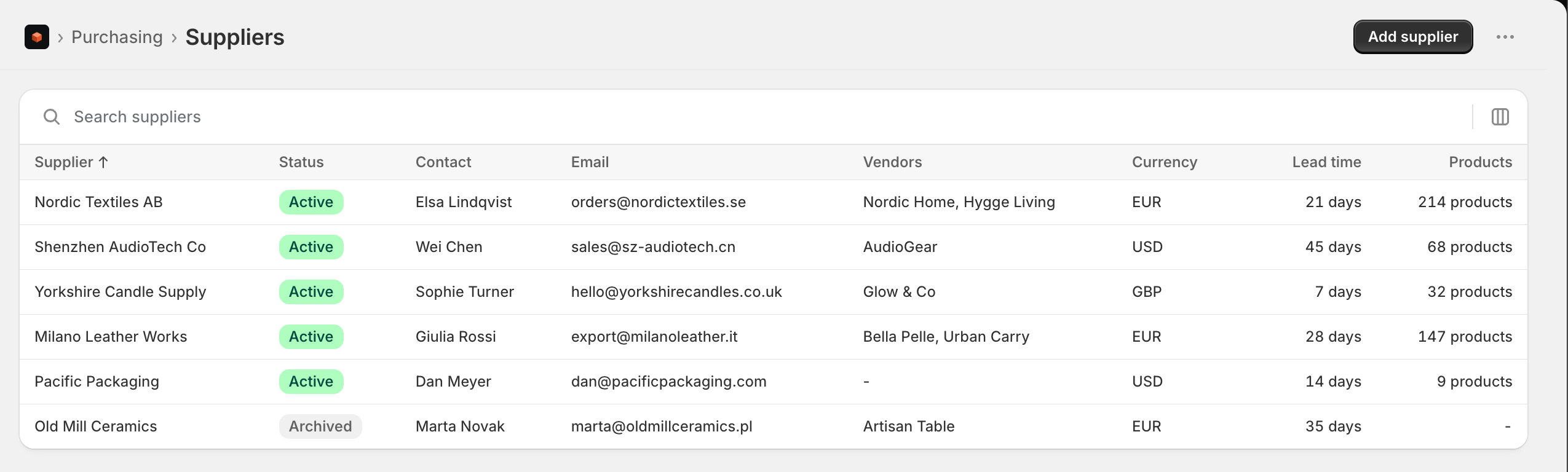
Adding a supplier
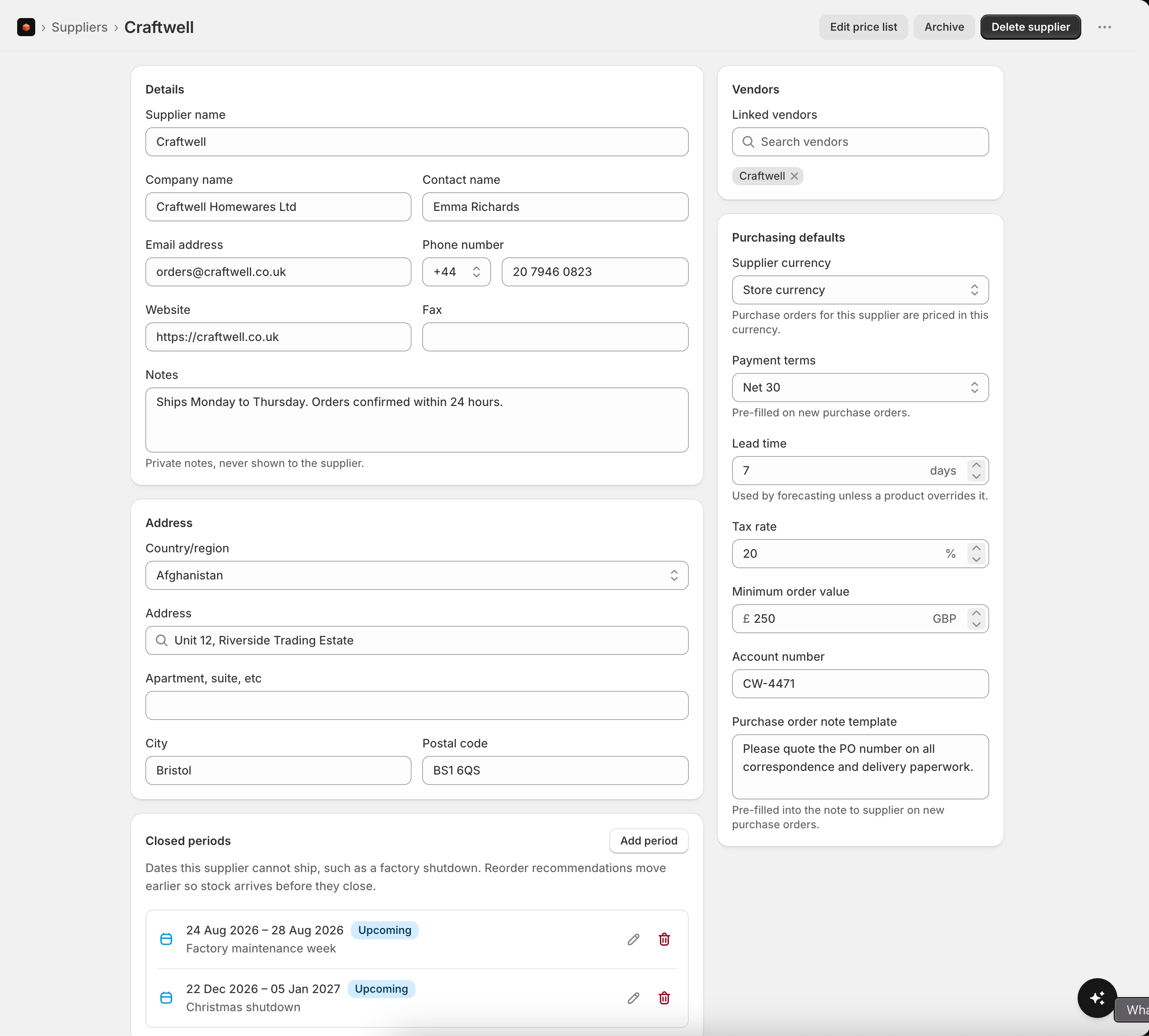
- Details - name, company, contact, email, phone, website, and private notes (never shown to the supplier).
- Address - used on purchase order documents.
- Purchasing defaults - these pre-fill onto new purchase orders for this supplier:
- Supplier currency - orders are priced in this currency and converted to your store currency.
- Payment terms - None, Cash on delivery, Payment on receipt, Payment in advance, or Net 7 / 15 / 30 / 45 / 60.
- Lead time (days) - how long this supplier takes to deliver. Used by forecasting and reorder timing unless a product overrides it.
- Tax rate, minimum order value, account number, and a purchase order note template that pre-fills the note to supplier.
- Vendors - link the Shopify vendors this supplier provides. Their products become eligible for this supplier’s price list and orders.
Importing suppliers from a CSV
Arriving from another inventory system with a supplier book already built? Click Import on the Suppliers page and upload a CSV. Each row becomes a supplier. Download the template from the import dialog for the full column set. Only a Name column is required; everything else attaches when the column is there. Headers are matched loosely, soSupplier, Contact email, Lead Days, Brands or Postcode all land where you would expect without renaming anything.
Before anything is saved you see a preview of every row:
- Ready rows will be created.
- Already exists - a supplier with that name is already in Stockful. It is skipped and never overwritten.
- Duplicate - the same name appears earlier in the file. Only the first is imported.
- Vendors takes several names in one cell, separated by
|, for exampleAcme | Acme Home. Names that do not match a vendor in your store are still saved, but the preview tells you how many, since they will not pull products in until they match. - Payment terms is read from free text:
Net 30,net-30and30 daysall become Net 30,CODandCash on deliverybecome Cash on delivery,Prepaidbecomes Payment in advance. Anything Stockful cannot place is shown in the preview and left empty rather than failing the row. - Minimum order value accepts
250.00,250,00and1.021,08alike. - Country is the two-letter code and Currency the three-letter code; other values are left empty.
Exporting suppliers
Click Export on the Suppliers page to download the current page, everything matching your search, the suppliers you have ticked, or all suppliers, as CSV or Excel. Every field is included, and the columns are the import template’s, so an export from one store imports straight into another.The price list
A supplier’s price list is the products you buy from them and what you pay. It’s what makes purchase orders quick - costs, supplier SKUs and pack sizes come straight from here. Each entry holds:- Supplier SKU - the supplier’s own code for the product, for their reference on the order.
- Cost - what you pay, in the supplier’s currency.
- Pack size - the unit you order in, so quantities round to whole packs.
- Pack unit - what a pack is called, like
rollsorboxes. It labels the pack breakdown on the purchase order, so your supplier and warehouse see how many packs the order comes to rather than just the raw quantity. Letters only - the count is already the pack size. - Min qty - the smallest quantity you can order.
- Lead time - a per-product override of the supplier’s default.
- Primary - marks this as the product’s main supplier.
Building the price list
Three ways to add products:- Search your catalogue and add products one by one.
- Add by vendor - pull in a whole vendor’s catalogue in one go.
- Import a CSV - columns are a SKU or barcode plus optional supplier SKU, cost, pack size, minimum quantity and lead time. Download the template from the dialog. Rows are checked and flagged Ready, Not found, Vendor not linked, Duplicate or Already added before you commit them, and if the file has no cost or supplier SKU column the dialog says so first. Costs are read in any decimal style, so
2.85,2,85and1.021,08all land correctly, and semicolon-separated files work as they are.
Exporting and removing products
Export downloads the price list as CSV or Excel: the current page, the rows you have ticked, everything matching your search, or the whole list. The columns match the import, so a price list exported from one supplier can be imported into another. Tick rows to select them and use Remove from price list to take several off at once. Removing a product from a price list never touches your purchase history.Primary supplier
A product can be on more than one supplier’s price list. The one marked Primary is the default used for reorder recommendations and pre-filled costs, so you always know where a product is bought from first.Closed periods
Suppliers shut. The clearest case is Chinese New Year, where factories close for around three weeks, but it applies to any holiday or factory break. Add the dates on the supplier and Stockful brings reorder recommendations forward, so an order fires early enough for stock to land before they close, sized to cover the gap until they reopen. Open a supplier, find Closed periods, and click Add period:- From and To - both required, and both days count as closed. A supplier shut the 8th to the 28th cannot ship on the 28th.
- Reason - optional, for your own reference. “Chinese New Year” or “Factory maintenance”.
How it changes the numbers
If stock ordered today would arrive while the supplier is shut, that delivery realistically lands on the day they reopen. Stockful treats the lead time as stretching to that date, which pulls the reorder point earlier and increases the suggested quantity to cover the closure. Nothing else changes. A supplier with no closed periods, or whose closures are nowhere near your next delivery, behaves exactly as before.Closed periods only affect recommendations. A purchase order you have already placed keeps the arrival date you or the supplier set - they know their own shutdown, so we don’t second-guess a date they have committed to.
How suppliers feed purchase orders
Everything on a supplier flows into ordering:- Choosing the supplier on a PO sets its currency and payment terms, and unlocks their price list for costing.
- Line costs, supplier SKUs and pack sizes come from the price list.
- Falling below the minimum order value warns you before you place the order.
- Lead time drives when reorder recommendations tell you to buy, so stock lands before you run out, adjusted for any closed periods.
Archiving and deleting
Archive a supplier you no longer use to hide it from pickers while keeping its record - unarchive any time. Deleting a supplier removes it and its price list, but your purchase history is kept, so past orders and costs stay intact.Migrating from Stocky? Your suppliers and price lists can come across automatically - see migrating from Stocky. Lead times aren’t in Stocky’s exports, so set the supplier default on the supplier and bring any per-product lead times in through the price list CSV.