

Creating an adjustment
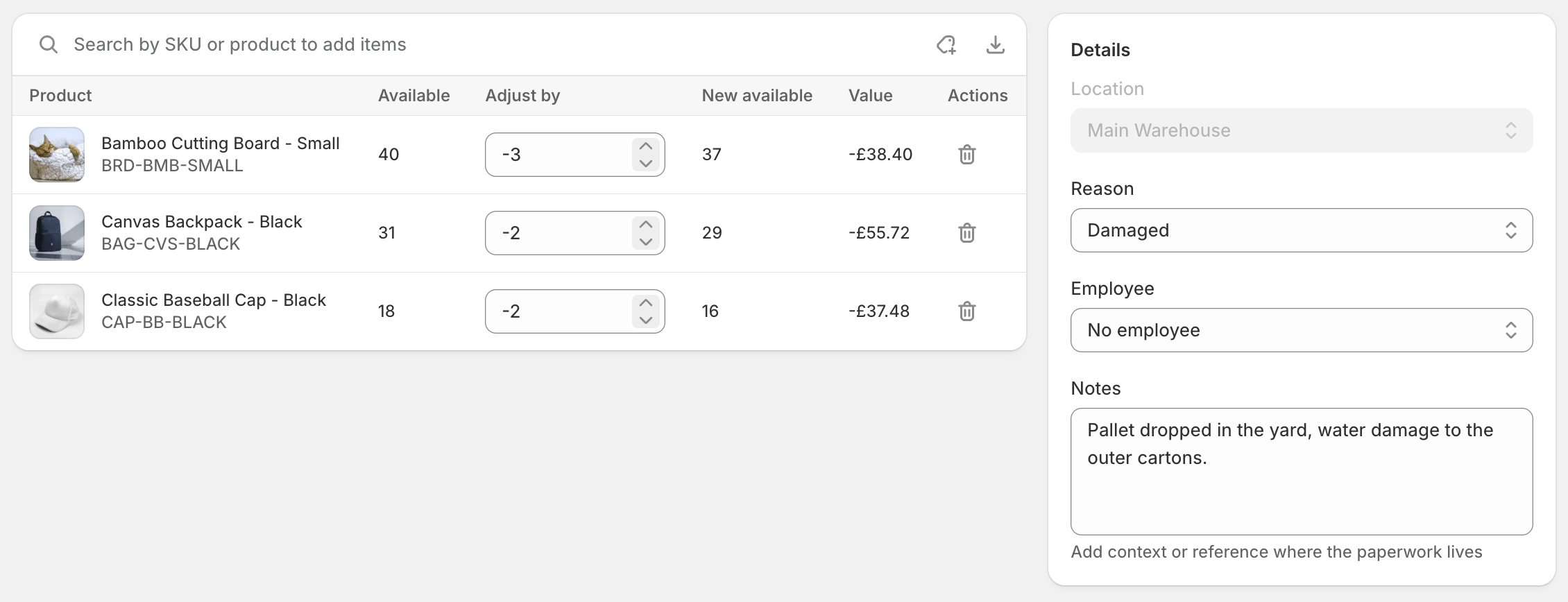
- Reason - Shopify’s full reason list (Correction, Stock count, Damaged, Return/restock, Scanned incorrectly, Received, Theft or loss, Safety stock, Quality control, Promotion or donation), with any custom reasons you’ve saved in their own group below. Pick Other (please specify) to type a one-off.
- Employee - who’s making the adjustment. Defaults to you.
- Notes - optional free text, useful for referencing a stock count or incident.
Custom reasons
Click Manage reasons above the Reason field to save your own reasons - Giveaways, Tastings, whatever your business books stock against. Saved reasons appear in the dropdown for everyone, so the same reason is always worded the same way, and reports break down by them just like the built-ins. Each saved reason also carries a Shopify reason - the closest match from Shopify’s own fixed list, which is how the adjustment appears in Shopify admin’s inventory history. Bad bottles can map to Damaged, giveaways to Promotion or donation; anything without a close match maps to Other. Your own wording is always kept in Stockful either way. Saved reasons can’t be edited - delete one and add it again to change its name or mapping. Deleting never changes past adjustments; performed documents keep the reason they were performed with.Adding items
There are three ways to add line items:- Search - type a product name, SKU, or barcode in the search bar and pick from the results.
- Bulk add - browse the location’s inventory in a table and enter adjust-by quantities against as many items as you like in one go.
- Import - upload a CSV of SKUs or barcodes and quantities.
Importing from CSV
The importer needs two columns: an identifier (SKU or barcode) and a quantity. Column headings are detected automatically, so exports from other tools - including Stocky’s adjustment exports - usually work as-is. A template is available in the import dialog if you’re starting from scratch. After you upload, Stockful validates every row against your inventory and shows a preview. Rows that can’t be added - unknown SKUs, duplicates, items not stocked at the location - are flagged and skipped, and you can edit quantities or untick rows before adding the rest.Saving and performing
Save keeps the adjustment as an Open draft. Drafts don’t change your stock - you can come back to them, keep editing, or delete them. Perform adjustment applies the changes to Shopify. You’ll see a confirmation summary first, showing the number of items and the net change. If you have unsaved edits, performing saves them automatically.After performing
A performed adjustment becomes read-only: a permanent record of what changed. Each line shows the new quantity, with a link through to that item’s inventory history in Shopify admin, where the adjustment appears under its Shopify reason. Completed adjustments can be archived once you’re done with them, and unarchived at any time. You can also export any adjustment as a CSV - one row per line item with the document details included, ready for a spreadsheet.An adjustment can contain up to 250 line items. For larger corrections, split the work across multiple adjustments.