

Slack and Discord alerts need that service connected first, under Settings → Integrations. Email and webhook alerts need no connection at all.
Alert types
Live alerts are evaluated the moment an inventory change arrives from Shopify. Once a day alerts are checked on a schedule, because the figures behind them - storefront sessions, sales history, supplier receipts - only update overnight.
How often an alert is checked isn’t something you set: it follows from the trigger, and is shown on the alert form beneath it. When the daily check runs is yours - pick the hour under Check time, and that’s when those alerts land. Two alerts on the same store can check at different times.
A few triggers can’t be checked in the small hours, because their own inputs aren’t there yet. Traffic surging, Promotion stock check and Time to reorder are available from 6am, Sales spike or drop from 9am (it waits for the overnight analysis to finish). The rest have no restriction.
For a low stock alert you choose how the threshold is measured:
- Days of cover - fires when a variant’s days of supply, based on recent sales velocity, falls below your number. Best for catching stockouts before they happen, even on fast movers.
- Units - fires when available units fall to or below your number. Best for a fixed floor regardless of how fast something sells.
Creating an alert
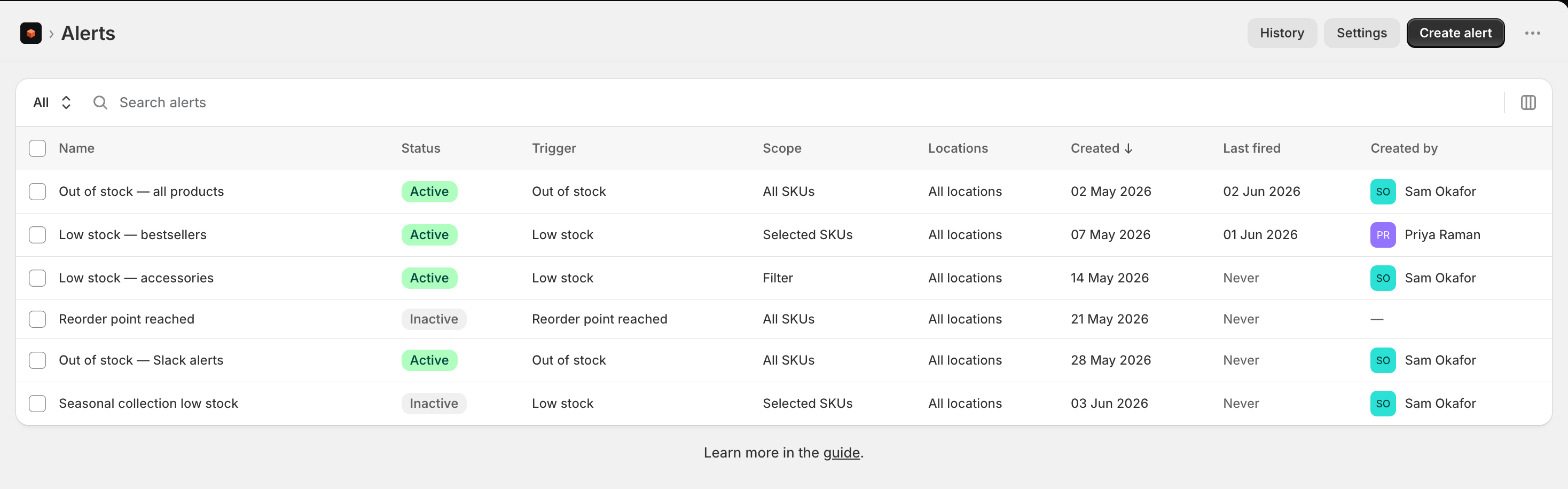
- Go to Alerts in the main menu, and click Create alert
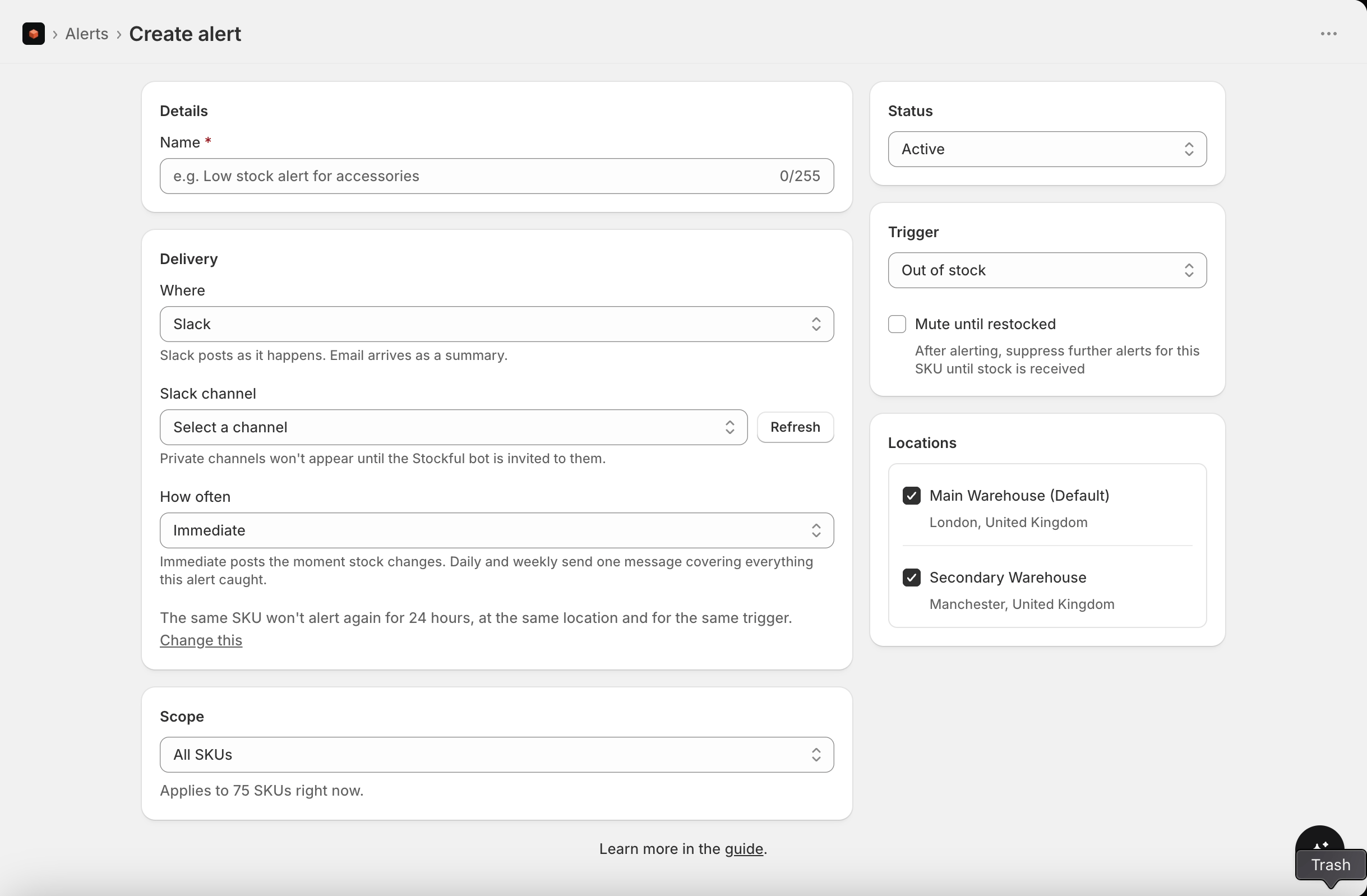
- Choose a trigger type and set the threshold. For low stock, also choose whether it’s measured in days of cover or units
- Choose where it goes under Delivery, and how it’s sent under Sending
- Choose which SKUs to watch - all SKUs, selected SKUs, or a filter
- Save the alert
- Only when nothing is on order (low stock and reorder point) - skips the alert while incoming stock or an open purchase order already covers the product, so you only hear about the SKUs that still need action.
- Minimum monthly sales value - only alerts for products selling at least that value per month at the current sales rate, keeping slow, low-value SKUs out of your channel.
Where alerts go, and how they’re sent
Each alert has its own settings, so a low stock alert can post to Slack on its own while a reorder alert arrives as one email each morning. Where is one of four channels, each with its own page:
Slack and Discord are each connected once for the whole shop, under Settings → Integrations, or straight from the alert with Connect. Email and webhook need no connection: their destination is set on the alert itself.
How to send is individual alerts, or a summary:
This is about how many messages you get, not how quickly. A once-a-day alert set to Individual alerts still only checks once a day; it just sends each finding as its own message rather than grouping them, at the check time you chose.
On a once-a-day trigger the summary’s time is the check time too, so a weekly summary still checks every day and reports the whole week. Nothing found on a Tuesday waits until the next Monday to be noticed.
A summary reports what the alert caught over the period, not whatever happens to be low when it sends. A SKU already reported yesterday isn’t listed again unless it alerts again, which is what makes this different from a scheduled report.
Email is always a summary. A message per alert by email on a large catalogue is thousands of emails, so individual sending is Slack and Discord only.