> ## Documentation Index
> Fetch the complete documentation index at: https://docs.stockful.app/llms.txt
> Use this file to discover all available pages before exploring further.
# Anomalies
> Stockful scans sales data daily and flags SKUs whose velocity has shifted out of pattern, each with a short AI-written explanation and likely cause.
Stockful scans your sales data every day and flags SKUs whose velocity has changed in a way that doesn't fit their usual pattern. Each anomaly comes with a short AI-written explanation of what happened and a likely cause.
 Anomaly detection runs on all plans. Turn it off any time under **Settings** → **AI**.
## What gets flagged
The daily scan compares each SKU's recent sales against its own baseline (the rolling average + variability) per location. When today's velocity falls far enough outside the normal band, Stockful records an anomaly.
Anomalies have a **direction**:
* **Drop** - sales fell sharply versus the baseline
* **Spike** - sales jumped sharply versus the baseline
And a **severity**, based on how far outside the normal band the change sits:
| Severity | Meaning |
| ---------- | ----------------------------------------------------------------- |
| **High** | Big move that's almost certainly real - worth investigating today |
| **Medium** | Notable change worth a look this week |
Anything smaller than the medium threshold is treated as noise and isn't recorded.
## Where you see them
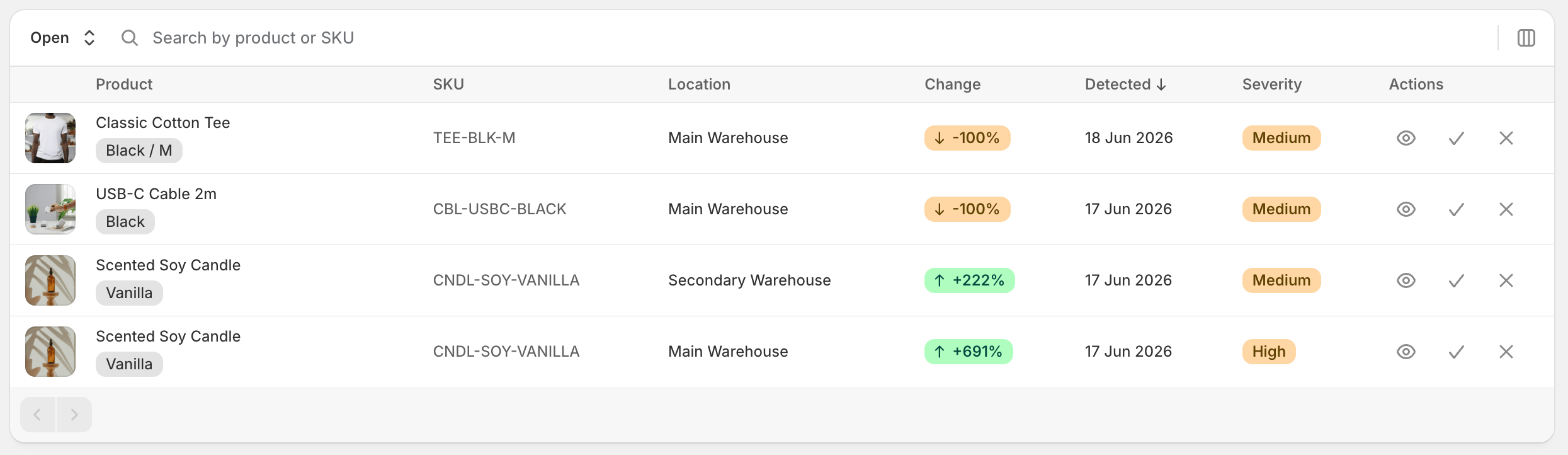
* **`/anomalies` page** - the dedicated list, filterable by location, severity, and direction. Each row shows the SKU, the observed vs. baseline numbers, the AI narrative, and a link to the inventory detail page.
* **Inventory detail page** - if the variant you're looking at has an open anomaly, a banner appears at the top of the page with the narrative and a **Dismiss** button.
* **Home dashboard** - a compact card on the home page surfaces the most recent unresolved anomalies so they don't get lost.
* **Slack** (optional) - high-severity anomalies can be posted to a Slack channel of your choice.
## Slack alerts
To get anomalies pushed to Slack:
1. Go to **Settings** → **AI**
2. Under **Anomaly alerts**, pick the **Slack channel** for alerts
3. Set the **Severity threshold** - **High severity only** (default) or **Medium and above**
4. Set the **Direction** - **Drops and spikes** (default) or **Drops only** if you only want to know about declining sales
5. Set the **Time of day** the alert can fire
Each Slack message includes the SKU, the size of the change, and the AI narrative.
## Dismissing an anomaly
Anomalies stay open until you dismiss them. Click **Dismiss** on the inventory-detail banner or use the dismiss action on a row in the anomalies list. Dismissed anomalies are excluded from cards and Slack alerts but stay in your history (filter the list by **Dismissed** to see them).
## What the AI narrative does
Anomaly detection itself is statistical - it doesn't need AI to fire. The AI step writes a short explanation: looks at the SKU's product type, vendor, recent events (price changes, restocks), and suggests a likely cause ("matches a Black Friday lift across the catalog", "stockout in the prior week may explain the drop", etc.). When the model isn't confident, the narrative says so rather than guessing.
## Plan availability
Available on all plans.
## Troubleshooting
* **No anomalies for a SKU** - the baseline needs enough recent sales history to compute. Brand-new SKUs won't generate anomalies until they have enough data.
* **Too many alerts in Slack** - raise the severity threshold to **High severity only** and/or switch the direction to **Drops only**.
* **Anomalies stopped appearing** - check **Settings** → **AI** that **Enable Stockful AI** is on. If it's off, no scan runs and no anomalies are recorded.
Anomaly detection runs on all plans. Turn it off any time under **Settings** → **AI**.
## What gets flagged
The daily scan compares each SKU's recent sales against its own baseline (the rolling average + variability) per location. When today's velocity falls far enough outside the normal band, Stockful records an anomaly.
Anomalies have a **direction**:
* **Drop** - sales fell sharply versus the baseline
* **Spike** - sales jumped sharply versus the baseline
And a **severity**, based on how far outside the normal band the change sits:
| Severity | Meaning |
| ---------- | ----------------------------------------------------------------- |
| **High** | Big move that's almost certainly real - worth investigating today |
| **Medium** | Notable change worth a look this week |
Anything smaller than the medium threshold is treated as noise and isn't recorded.
## Where you see them
* **`/anomalies` page** - the dedicated list, filterable by location, severity, and direction. Each row shows the SKU, the observed vs. baseline numbers, the AI narrative, and a link to the inventory detail page.
* **Inventory detail page** - if the variant you're looking at has an open anomaly, a banner appears at the top of the page with the narrative and a **Dismiss** button.
* **Home dashboard** - a compact card on the home page surfaces the most recent unresolved anomalies so they don't get lost.
* **Slack** (optional) - high-severity anomalies can be posted to a Slack channel of your choice.
## Slack alerts
To get anomalies pushed to Slack:
1. Go to **Settings** → **AI**
2. Under **Anomaly alerts**, pick the **Slack channel** for alerts
3. Set the **Severity threshold** - **High severity only** (default) or **Medium and above**
4. Set the **Direction** - **Drops and spikes** (default) or **Drops only** if you only want to know about declining sales
5. Set the **Time of day** the alert can fire
Each Slack message includes the SKU, the size of the change, and the AI narrative.
## Dismissing an anomaly
Anomalies stay open until you dismiss them. Click **Dismiss** on the inventory-detail banner or use the dismiss action on a row in the anomalies list. Dismissed anomalies are excluded from cards and Slack alerts but stay in your history (filter the list by **Dismissed** to see them).
## What the AI narrative does
Anomaly detection itself is statistical - it doesn't need AI to fire. The AI step writes a short explanation: looks at the SKU's product type, vendor, recent events (price changes, restocks), and suggests a likely cause ("matches a Black Friday lift across the catalog", "stockout in the prior week may explain the drop", etc.). When the model isn't confident, the narrative says so rather than guessing.
## Plan availability
Available on all plans.
## Troubleshooting
* **No anomalies for a SKU** - the baseline needs enough recent sales history to compute. Brand-new SKUs won't generate anomalies until they have enough data.
* **Too many alerts in Slack** - raise the severity threshold to **High severity only** and/or switch the direction to **Drops only**.
* **Anomalies stopped appearing** - check **Settings** → **AI** that **Enable Stockful AI** is on. If it's off, no scan runs and no anomalies are recorded.