> ## Documentation Index
> Fetch the complete documentation index at: https://docs.stockful.app/llms.txt
> Use this file to discover all available pages before exploring further.
# Overview
> Alerts watch your inventory and tell you in Slack or by email when the conditions you care about are met. Every plan includes unlimited alerts.
Alerts watch your inventory and tell you in Slack or by email when conditions you care about are met. All plans include unlimited alerts.
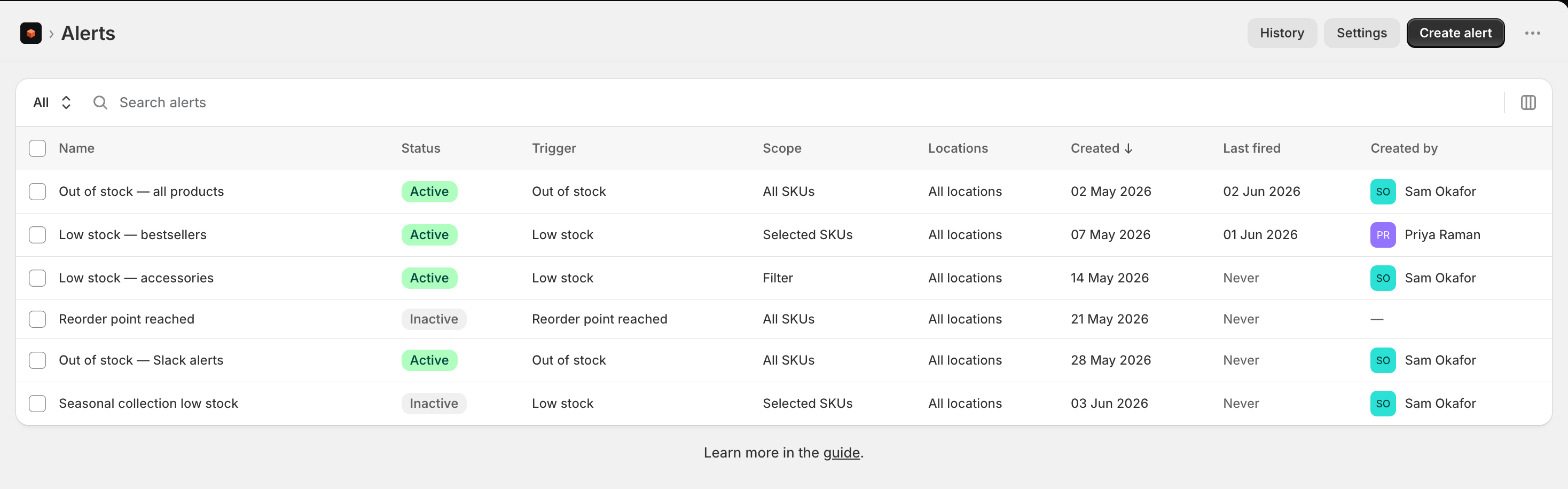 Slack alerts need a Slack connection, set up in **Settings**, under **App**, on the **Alert settings** page. Email alerts need no connection at all.
## Alert types
| Alert | Triggers when... |
| ------------------------- | ------------------------------------------------------------------------------------------------------------------------------------------- |
| **Out of stock** | A variant hits zero, or goes negative because it has sold past zero |
| **Back in stock** | A variant that was out of stock returns to a positive quantity. It does not fire when stock simply increases from an already-positive level |
| **Low stock** | A variant drops below a threshold you set, measured in days of cover or units |
| **Reorder point reached** | A variant falls to or below its reorder point, while still in stock |
For a **low stock** alert you choose how the threshold is measured:
* **Days of cover** - fires when a variant's days of supply, based on recent sales velocity, falls below your number. Best for catching stockouts before they happen, even on fast movers.
* **Units** - fires when available units fall to or below your number. Best for a fixed floor regardless of how fast something sells.
## Creating an alert
Slack alerts need a Slack connection, set up in **Settings**, under **App**, on the **Alert settings** page. Email alerts need no connection at all.
## Alert types
| Alert | Triggers when... |
| ------------------------- | ------------------------------------------------------------------------------------------------------------------------------------------- |
| **Out of stock** | A variant hits zero, or goes negative because it has sold past zero |
| **Back in stock** | A variant that was out of stock returns to a positive quantity. It does not fire when stock simply increases from an already-positive level |
| **Low stock** | A variant drops below a threshold you set, measured in days of cover or units |
| **Reorder point reached** | A variant falls to or below its reorder point, while still in stock |
For a **low stock** alert you choose how the threshold is measured:
* **Days of cover** - fires when a variant's days of supply, based on recent sales velocity, falls below your number. Best for catching stockouts before they happen, even on fast movers.
* **Units** - fires when available units fall to or below your number. Best for a fixed floor regardless of how fast something sells.
## Creating an alert
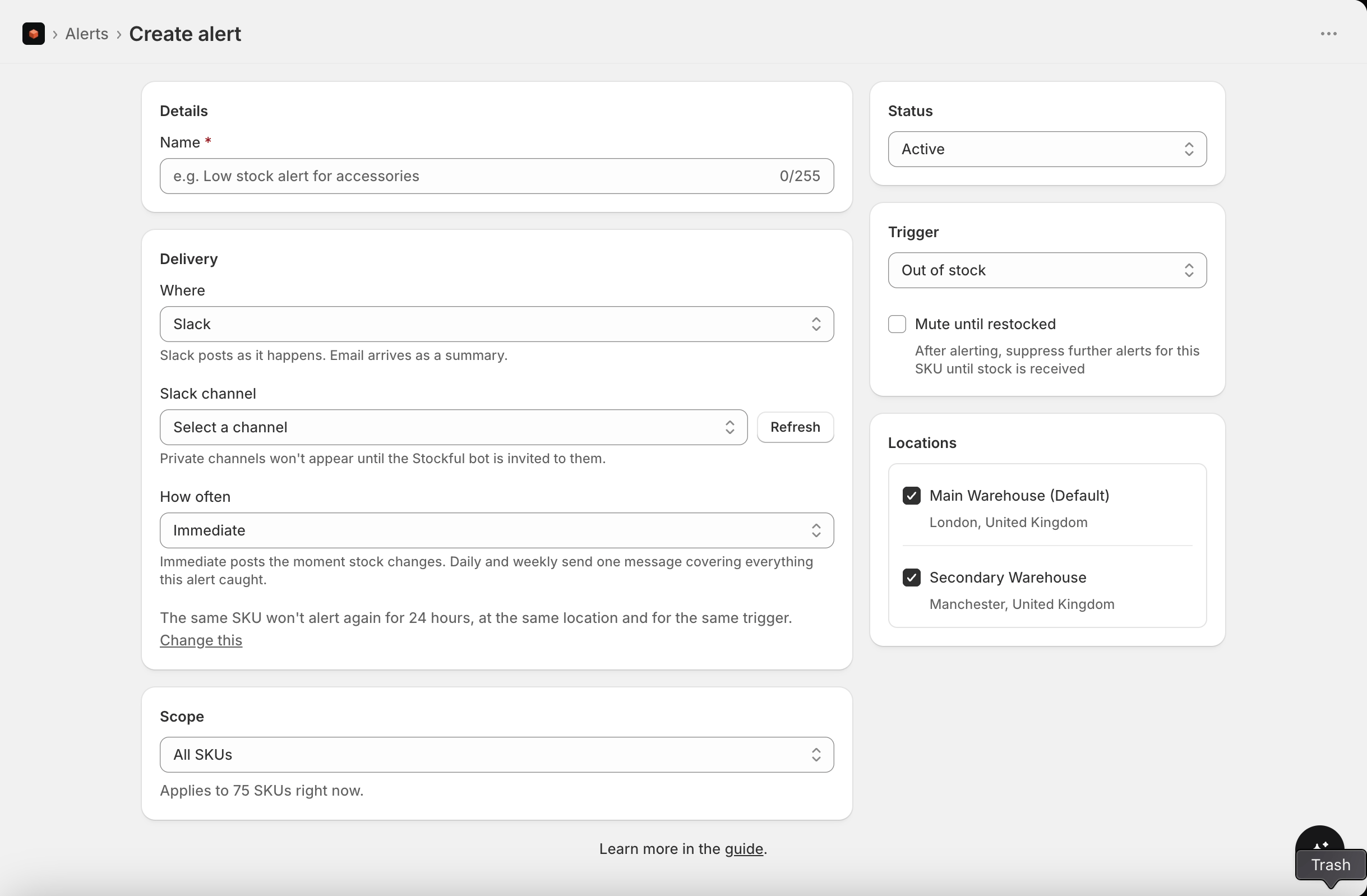 1. Go to **Alerts** in the main menu, and click **Create alert**
2. Choose a trigger type and set the threshold. For **low stock**, also choose whether it's measured in **days of cover** or **units**
3. Choose where it goes and how often, under **Delivery**
4. Choose which SKUs to watch - all SKUs, selected SKUs, or a filter
5. Save the alert
Alerts are evaluated in real time as inventory changes arrive from Shopify. You can pause or edit an alert at any time.
The same variant won't be alerted on again until the cooldown passes, so a SKU hovering around its threshold doesn't fill your channel. The cooldown is 24 hours by default and you can change it in **Alert settings** - anything from an hour to a week. It applies per location and per trigger, so the same product can still alert about a different problem.
## Where alerts go, and how often
Each alert has its own delivery settings, so a low stock alert can post to Slack the moment it happens while a reorder alert arrives as one email each morning.
**Where** is Slack or email. Slack posts to a channel. Email goes to the recipients you add on that alert, which do not have to be the same people for every alert.
**How often** is immediate, daily or weekly:
| How often | What arrives |
| ------------- | ----------------------------------------------------------------------------------------- |
| **Immediate** | One message the moment stock changes |
| **Daily** | One message at a time you choose, covering everything the alert caught since the last one |
| **Weekly** | The same, on a day you choose |
Daily and weekly report what the alert *caught over the period*, not whatever happens to be low when they send. A SKU already reported yesterday isn't listed again unless it alerts again, which is what makes this different from a scheduled report.
Email can't be immediate. A per-event email on a large catalogue is thousands of messages, so email is always a summary. Slack can be any of the three, including a daily summary.
Emails carry an unsubscribe link. Using it removes that one address from that one alert, and leaves your other alerts alone. If it was the only recipient, the alert is turned off rather than left running with nowhere to send.
### Testing an alert
**Send test** on a saved alert shows what it will actually produce: a single message for an immediate alert, or a sample digest for a daily or weekly one. Email tests go to one address only, so testing never mails the whole team. Test sends don't count towards the cooldown.
Start with a broad alert (all SKUs, generous threshold) and refine once you see which alerts are useful.
1. Go to **Alerts** in the main menu, and click **Create alert**
2. Choose a trigger type and set the threshold. For **low stock**, also choose whether it's measured in **days of cover** or **units**
3. Choose where it goes and how often, under **Delivery**
4. Choose which SKUs to watch - all SKUs, selected SKUs, or a filter
5. Save the alert
Alerts are evaluated in real time as inventory changes arrive from Shopify. You can pause or edit an alert at any time.
The same variant won't be alerted on again until the cooldown passes, so a SKU hovering around its threshold doesn't fill your channel. The cooldown is 24 hours by default and you can change it in **Alert settings** - anything from an hour to a week. It applies per location and per trigger, so the same product can still alert about a different problem.
## Where alerts go, and how often
Each alert has its own delivery settings, so a low stock alert can post to Slack the moment it happens while a reorder alert arrives as one email each morning.
**Where** is Slack or email. Slack posts to a channel. Email goes to the recipients you add on that alert, which do not have to be the same people for every alert.
**How often** is immediate, daily or weekly:
| How often | What arrives |
| ------------- | ----------------------------------------------------------------------------------------- |
| **Immediate** | One message the moment stock changes |
| **Daily** | One message at a time you choose, covering everything the alert caught since the last one |
| **Weekly** | The same, on a day you choose |
Daily and weekly report what the alert *caught over the period*, not whatever happens to be low when they send. A SKU already reported yesterday isn't listed again unless it alerts again, which is what makes this different from a scheduled report.
Email can't be immediate. A per-event email on a large catalogue is thousands of messages, so email is always a summary. Slack can be any of the three, including a daily summary.
Emails carry an unsubscribe link. Using it removes that one address from that one alert, and leaves your other alerts alone. If it was the only recipient, the alert is turned off rather than left running with nowhere to send.
### Testing an alert
**Send test** on a saved alert shows what it will actually produce: a single message for an immediate alert, or a sample digest for a daily or weekly one. Email tests go to one address only, so testing never mails the whole team. Test sends don't count towards the cooldown.
Start with a broad alert (all SKUs, generous threshold) and refine once you see which alerts are useful.